PBJ Omada

Your clients’ TP-Link Omada networks, on their CRM record — an alert when something drops, live device status, and a Help Desk ticket that opens itself when a problem lasts.

$25 one-time — per major version   Requires PBJ CRM 7.61+

What it does

PBJ Omada connects the TP-Link Omada cloud controllers you manage for your clients to PBJ CRM. Each controller sends its alerts to a private webhook address on your site, and PBJ Omada files every alert under the client business that Omada site belongs to. Where the controller’s Open API is set up, it also reads the status of every device every five minutes. The result is a Network card on the client’s record that tells your team at a glance whether the client’s gateway, switches and access points are up.

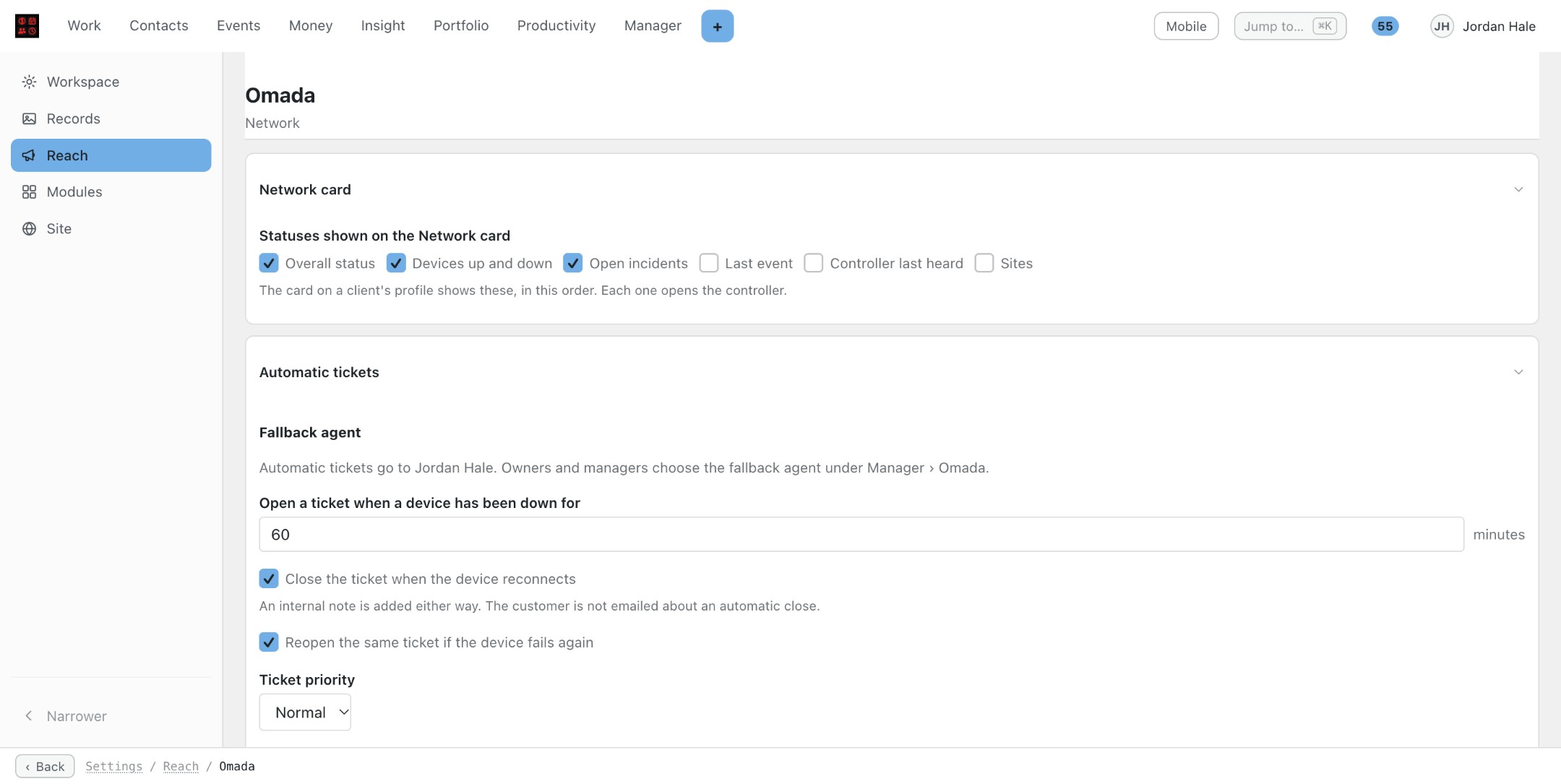
With PBJ Help Desk active, a problem that lasts longer than an hour (you choose the wait) opens a ticket by itself, assigned to the person or Help Desk group you picked for that controller. The ticket closes when the problem clears and the same ticket reopens if it comes back. If pbj.tech cannot read a controller at all, that becomes a “Controller unreachable” ticket too.

Omada stays the place you build and configure the network; the CRM is where your team sees it, next to the customer, their invoices and their other tickets.

Features

Alerts filed under the right client

  • Each controller posts its alerts — device disconnected or connected, WAN down or up, access point isolated, Cloud Access failed — to a private webhook address on your site.
  • Every alert is filed under the client business its Omada site is mapped to, and appears on that client’s timeline.
  • A controller added for one client files all of its sites there automatically; a shared controller lets you file each site yourself.
  • Omada retries a failed delivery. A retry is stored once, while a real down, up, down again is always kept.

A Network card on every client

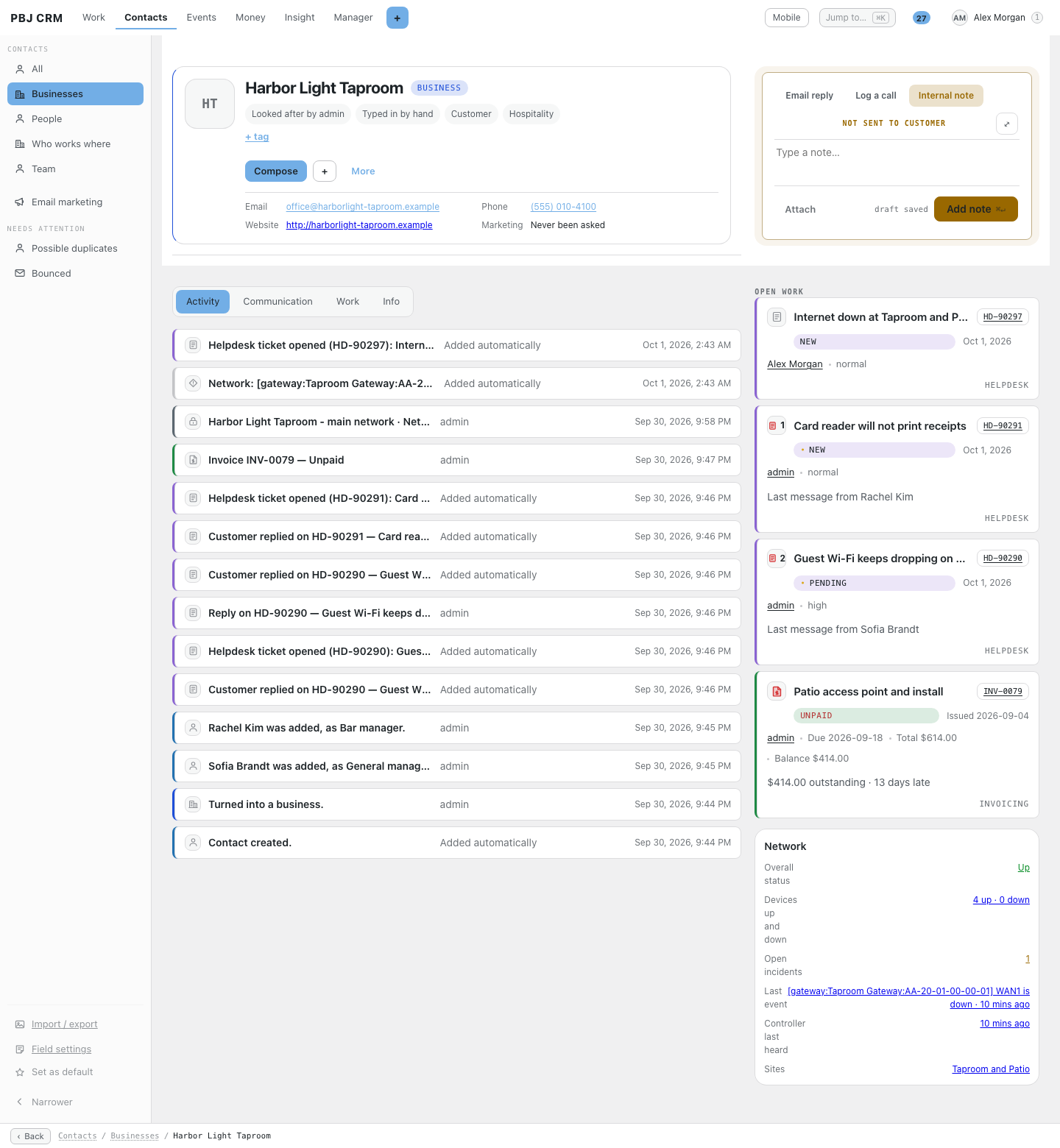
  • Overall status, devices up and down, open incidents, the last event, when the controller was last heard from and the sites — the lines you choose, in the order you choose.
  • Managers and owners click a line to open the controller; employees see the card as plain words.
  • A person filed under a business sees the same card.

Device status between alerts

  • With the controller’s Open API set up, PBJ Omada reads every site’s devices every five minutes: Online, Offline or Status unknown, and since when.
  • Devices are matched by MAC address, so two devices with the same name stay two devices.
  • A controller that is failing is retried after 5 minutes, then at doubling gaps up to an hour; a good read clears it.

Help Desk tickets that open themselves

  • A problem that lasts past your wait (60 minutes unless you change it) opens a ticket for the client, assigned to the person or Help Desk group you chose for that controller. The person is emailed.
  • When the problem clears the ticket gets an internal note and closes itself, if you leave that on. The customer is not emailed about the automatic close.
  • If the same problem returns, the same ticket reopens instead of a new one.

Controller unreachable

  • When pbj.tech cannot read a controller through its Open API, an incident opens at the first failed read.
  • After the same wait it becomes a ticket, Controller unreachable: <controller name>, naming the address and the last error.
  • The next good read adds a note and closes it; a later outage reopens the same ticket.

You decide what counts, per controller

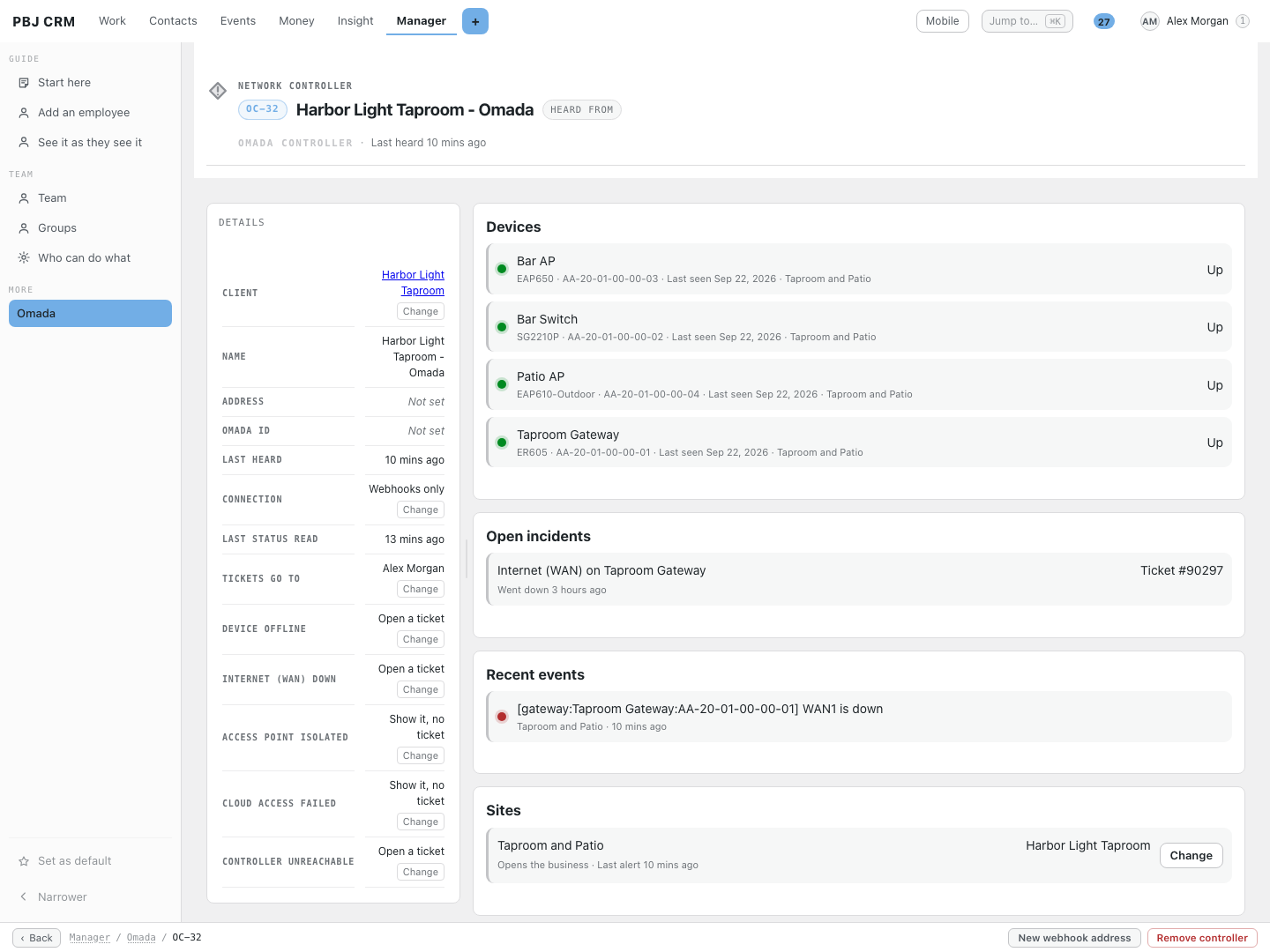
  • For each kind of alert — device offline, internet (WAN) down, access point isolated, Cloud Access failed, controller unreachable — choose Open a ticket, Show it, no ticket or Ignore it.
  • Choose who gets a controller’s tickets: one person, or a Help Desk group whose rota picks the member.
  • A clearing alert always clears what is open, whatever the setting says now.

Managed from the CRM

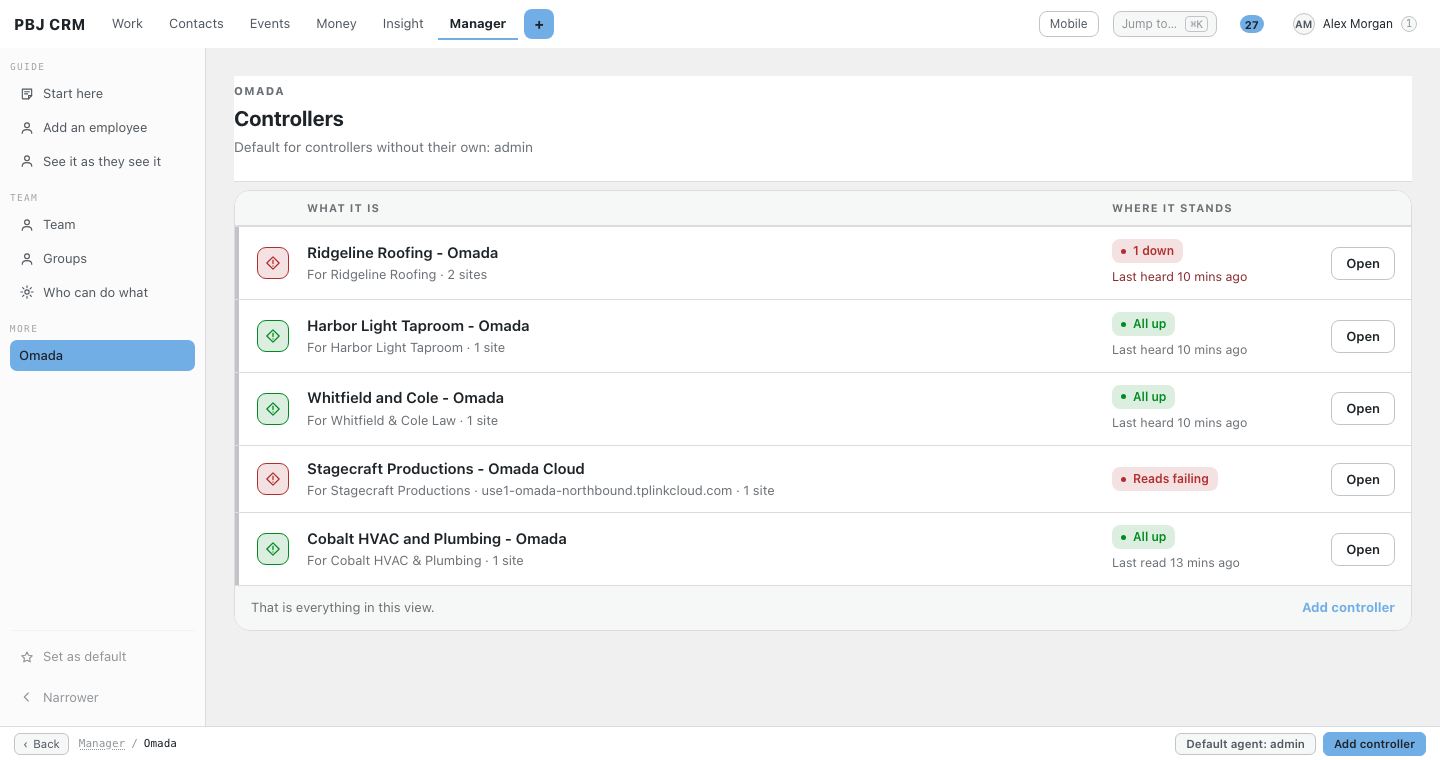
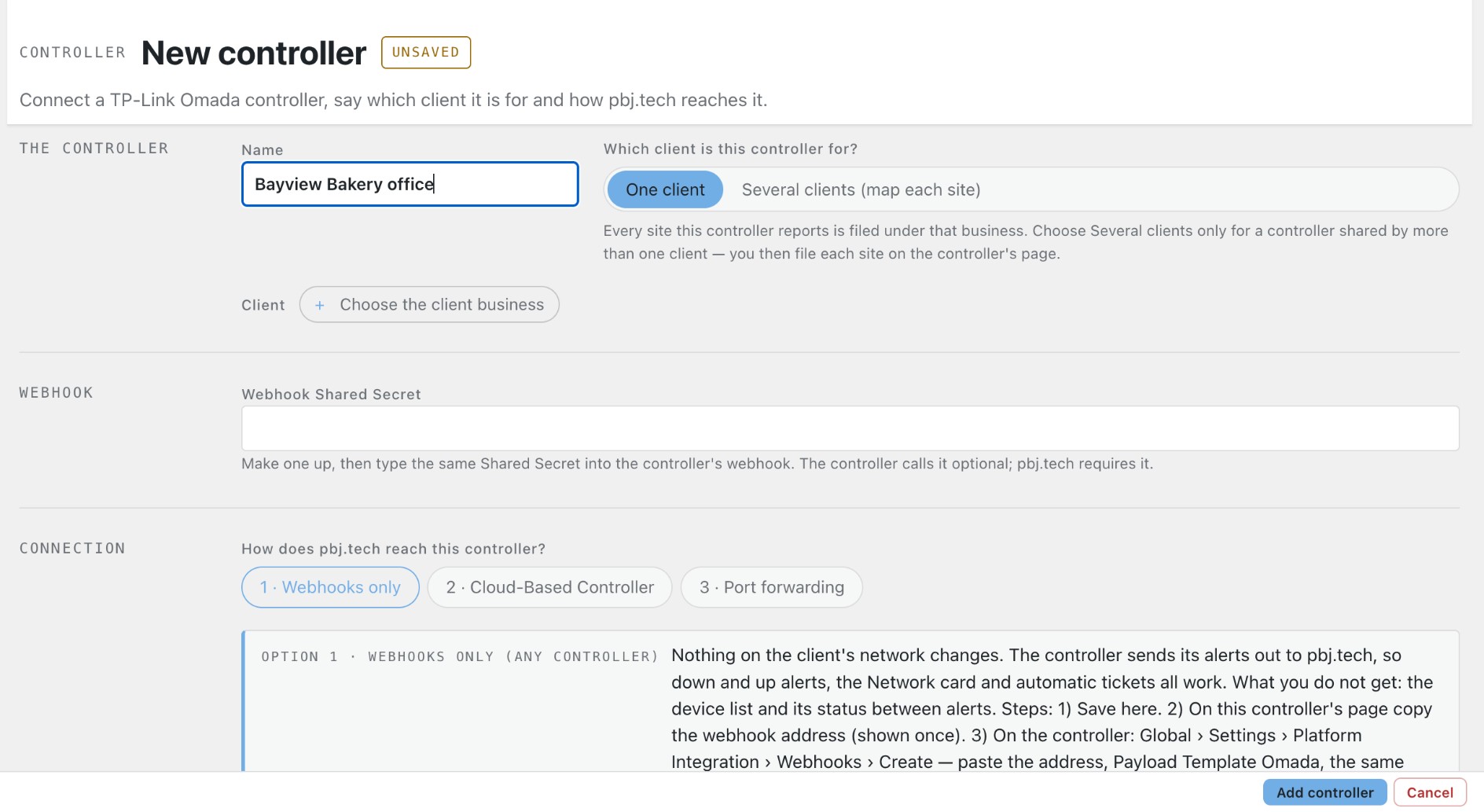
  • Manager › Omada lists every controller: who it is for, its address and port, its sites, its status and when it was last heard from.
  • Owners add a controller with the CRM’s own business finder, make a new webhook address or remove it; managers and owners see the list, employees do not.
  • The webhook address is shown once, and every secret is stored encrypted and never displayed again.
  • A renamed site is joined up safely: with the Open API its own id proves it; otherwise nothing moves until an owner presses one button.

Three ways to connect a controller

  • Webhooks only: nothing changes on the client’s network, and alerts, the Network card and tickets all work. You do not get device status between alerts.
  • TP-Link Cloud-Based Controller: add the Open API for the five-minute device read.
  • Port forwarding to a controller on the client’s network, with step-by-step instructions. If a read is refused or times out, PBJ Omada says which side is blocking.

Customers see their devices

  • In the client portal, each customer sees their network devices, one group per site: Online, Offline or Status unknown, and since when. Needs PBJ CRM 7.68 or newer.
  • MAC and IP addresses, firmware and controller details are never shown to the customer.

Good to know

  • Alerts work with any Omada controller that can send Omada webhooks. Device status between alerts needs a TP-Link Cloud-Based Controller or a controller you can reach by port forwarding; a controller reached only through Omada Cloud Access works with webhooks.
  • Alerts are recognised by the words TP-Link uses for them. Anything not recognised is still stored and shown as an ordinary event.
  • Times on the CRM screens are shown in each viewer’s own time zone; ticket notes and emails use the site’s time zone.
  • Remove the plugin and nothing breaks; uninstalling keeps your data unless you choose to delete it.

Screenshots

Real screens from PBJ CRM with sample clients. Names, emails and phone numbers are made up.

The Manager, Omada screen in PBJ CRM listing five network controllers with the client each is for and a status badge: one reads 1 down, three read All up and one reads Reads failing

Manager › Omada: every controller, the client it is for, and whether it is all up.

A controller page in PBJ CRM for a taproom: its four devices all Up, an open incident for the internet connection with its ticket number, the recent alert, the site, and the setting for each kind of alert

A controller’s page: its devices, the open incident with its ticket, and what happens for each kind of alert.

A business record in PBJ CRM with a Network card in the side column showing overall status Up, 4 devices up and none down, one open incident, the last alert and when the controller was last heard from

The Network card on a client’s record, beside their open tickets.
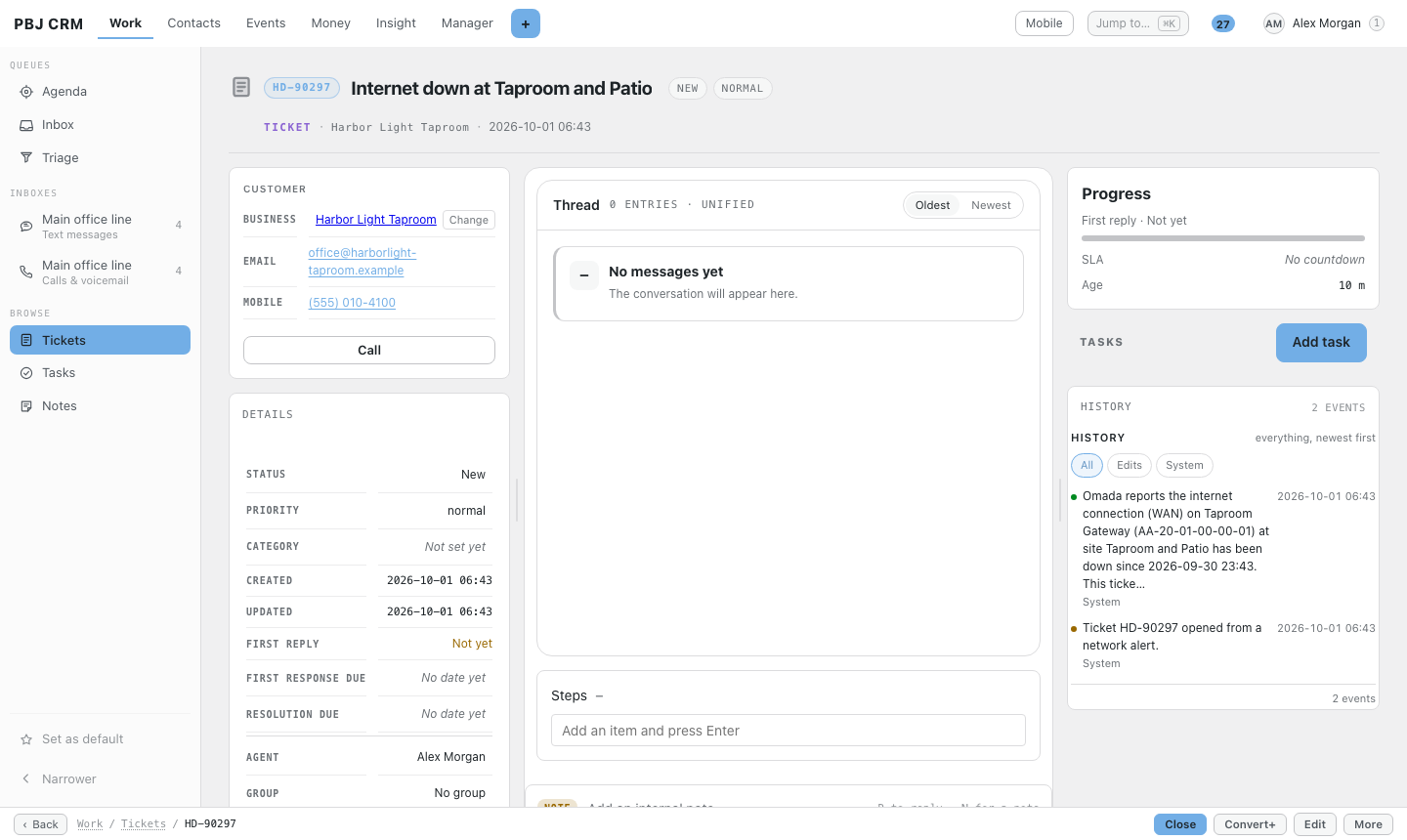
A Help Desk ticket in PBJ CRM titled Internet down at Taproom and Patio, opened from a network alert, with the alert text in its history and a team member assigned

The ticket PBJ Omada opened for an internet outage, with the alert in its history.
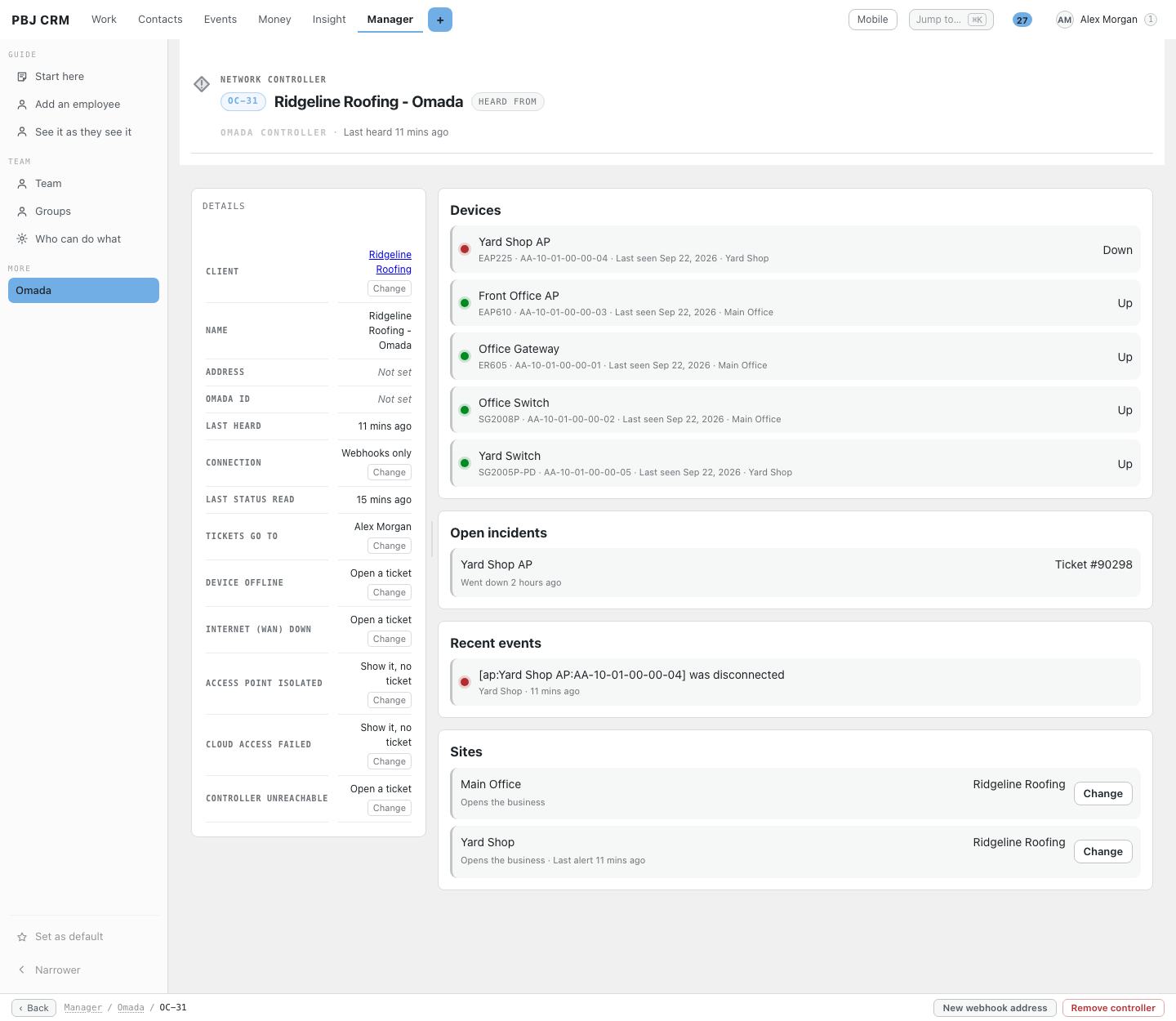
A controller page in PBJ CRM for a roofing company showing one access point marked Down among five devices, with the open incident, its ticket number and the recent alert

One access point down: the incident and its ticket sit on the controller page.
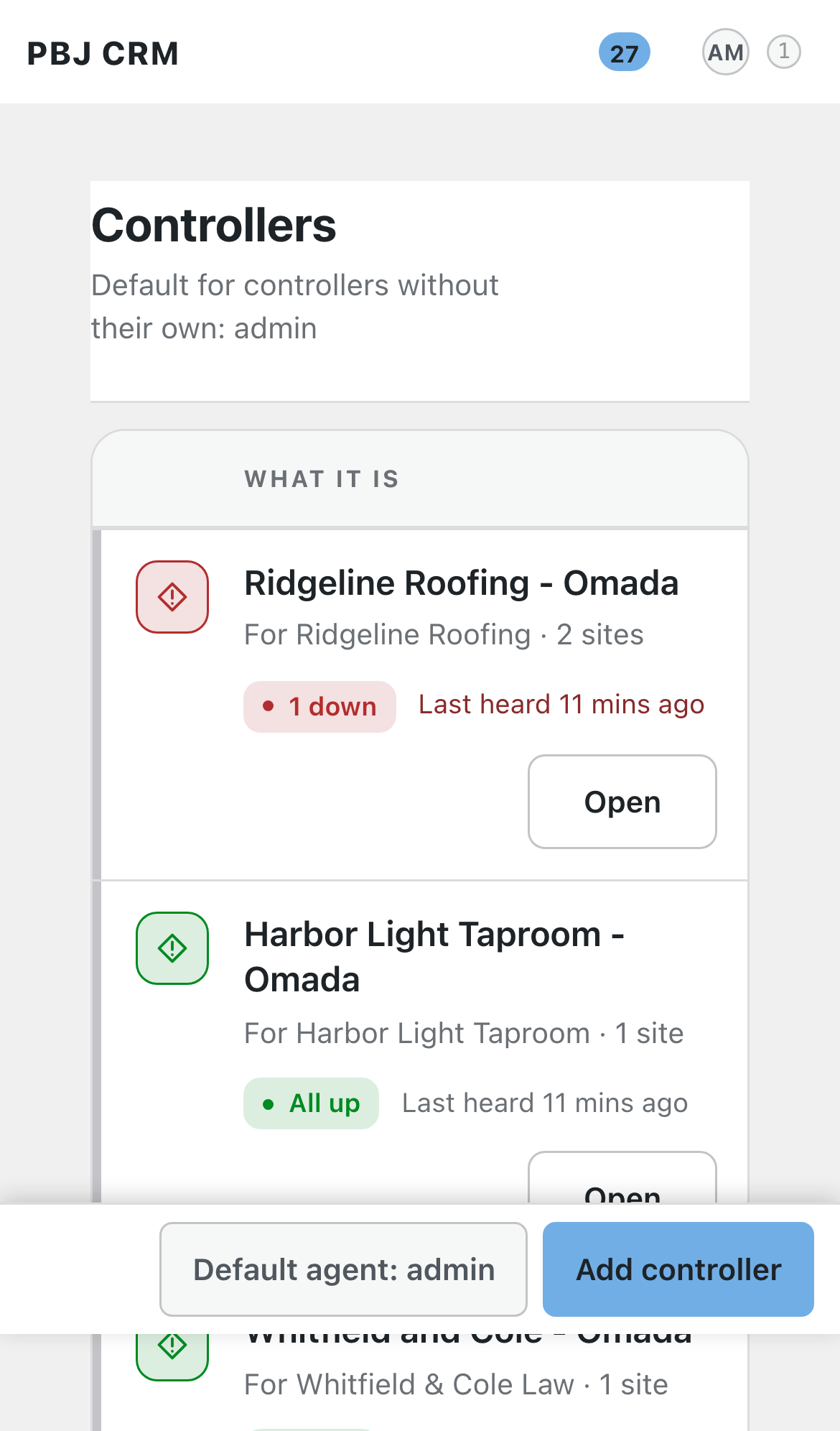
The Omada controller list in PBJ CRM on a phone, showing two controllers with their status badges and Open buttons

The controller list on a phone.

How it helps your business

Five everyday examples, step by step. Your own business will look different, but the pattern is the same.

Trades and field service (roofing, HVAC, plumbing)

A roofing contractor runs Omada Wi-Fi at the office and the yard shop. On a Saturday the yard shop’s access point drops. The alert lands on the contractor’s Network card straight away, and if it is still down an hour later a ticket, Network device down: Yard Shop AP (Yard Shop), opens for the dispatcher. When the access point reconnects, the ticket gets a note and closes itself. Nobody had to watch a dashboard to find out.

Managed IT and tech support

An MSP watches the networks of a dozen client sites. Each client has its own controller tied to its business in the CRM, and Manager › Omada lists them all with All up or N down. When a client rings, the tech opens their record and reads the Network card before saying hello. When a client’s controller stops answering, say because a router forward was switched off, a Controller unreachable ticket opens with the address and the last error.

Hospitality and venues (bars, restaurants, event spaces)

A bar’s gateway loses its internet connection in the middle of Friday service. Omada sends a WAN down alert, and an hour later Internet down at Taproom and Patio is a ticket in the Help Desk group that covers evenings, with the alert text in its history. When the connection returns the ticket is closed with a note, and if the bar’s Wi-Fi drops again next week the same ticket reopens, so the pattern is on one page.

Professional offices (law, accounting, insurance)

A small law office wants its Wi-Fi to just work and does not want to learn a network dashboard. The firm’s record shows every access point’s status and the history of each drop, so a question such as “how often did the conference room drop this quarter?” has an answer. With the client portal on, the firm can also look at its own devices, Online or Offline and since when, without ever seeing a MAC or IP address.

AV, music and events production

An AV integrator installs Omada networks at venues for several clients and runs them from one controller. They choose Several clients for that controller and file each site under the venue’s business. Alerts and the Network card follow each site to the right customer, and a show-night access point failure becomes a ticket for the right client without anyone sorting alerts by hand.

Works with

PBJ Omada is a module and requires PBJ CRM 7.61 or newer, installed and active. It pairs with the rest of the suite:

  • PBJ Helpdesk: the tickets that open, note and close themselves. PBJ Omada works without it, but then alerts and device status are shown and nothing is ticketed.
  • The client portal (PBJ CRM 7.68 or newer): customers see their own devices, Online or Offline and since when.

You also need a TP-Link Omada controller of your own, WordPress 6.5+ and PHP 7.4+.

One-time pricing, spelled out

PBJ Omada is $25, one time, per major version. Every improvement within this major version — new features, fixes, security updates — arrives free through the built-in update channel. A future major version is a separate purchase if you want it — your copy keeps working either way. One license key covers 3 sites.

Requires PBJ CRM 7.61 or newer ($50 one-time per major version, sold separately). It is a module, not a standalone product: the clients, staff and permissions are all the CRM’s, so there is no second list of anything to keep in step.

Using it

  1. Install the hub first. Install and activate PBJ CRM 7.61 or newer, then upload pbj-omada.zip and activate it. You need WordPress 6.5+, PHP 7.4+ and a site on HTTPS.
  2. Add the controller. In the CRM, open Manager › Omada and press Add controller (owners). Give it a name, choose the client business with the business finder (or Several clients), make up a Shared Secret and pick the cloud region. Press Copy on the webhook address — it is shown once.
  3. Create the webhook on the controller. In Omada’s Global view open Settings › Platform Integration › Webhooks and create one with that address, the Omada payload template, the same Shared Secret and Retry Policy Critical. Then, in each site, turn on Webhook under Logs › Notifications for the alerts you want.
  4. Choose who gets tickets. On Manager › Omada pick the fallback agent; nothing is ticketed until one is saved. Add the controller’s Open API details if you want device status every five minutes.
  5. Enter your license key. Put the key from your purchase email on the plugin’s settings screen so updates reach you.

Buy PBJ Omada

$25 one-time — per major version   Includes a license key for 3 sites, instant download, and free updates within this major version. Requires PBJ CRM 7.61 or newer.

PBJ Omada — $25 Purchase

Secure one-time purchase of PBJ Omada for $25 USD. One-time payment per major version — every update within this major version is free through the built-in updater, and your license key covers 3 sites. Requires PBJ CRM 7.61 or newer. Pay by card below; your download link and license key are emailed and shown instantly.

Amount: 25.00 USD