PBJ RingCentral
Your business texts, calls and voicemail, right next to the customer they belong to, inside PBJ CRM.
Customers text the business line, leave voicemails and call back. Today those answers sit in a phone app nobody else can see. PBJ RingCentral is an integration that puts them inside PBJ CRM, on the customer’s record, where your whole team can answer them.
$25 one-time per major version · Requires PBJ CRM (latest version) ($50) · One key covers 3 sites

Pay once. Keep your texts on your own site.
$25, once
One payment per major version. Every update in that version is free.
No middleman
The CRM talks to RingCentral directly. There’s no third-party sync service and no second inbox.
No password stored
You sign in with RingCentral. The CRM stores no RingCentral password and needs no client secret.
Requires PBJ CRM (latest version) and your own RingCentral account.
How it fits PBJ CRM
PBJ RingCentral is a module, not a standalone product. It adds two screens to the CRM’s Communication area, Text messages and Calls & voicemail. Everything else stays the CRM’s.
The CRM already has
Your people, businesses and staff; permissions; the customer timeline; Convert+; the inbox and search. There is no second list of anything to keep in step.
This module adds
The connection to your own RingCentral account, shared or personal; texts, the call log, voicemail audio and transcripts; click to call; and the folders Inbox, Filed, Spam and Bin. RingCentral stays the source of truth for the conversation itself.
See it working
- Texts, calls and voicemail from RingCentral land in the CRM’s inbox.
- Voicemail shows the written transcript when your RingCentral plan provides one.
- Phone numbers link to the right client, business or staff member.
How a conversation becomes work
Business texts, in your CRM
Open a thread and reply right from the CRM.
Linked to the right customer
Every number links to a client, business or staff member, so you know who is texting.
Read it, no need to listen
Open a voicemail and read the transcript before you call back. Transcripts appear when your RingCentral plan provides them.
Turn a text into a ticket
Convert+ turns a conversation into a ticket, an invoice or a booking, and it leaves the inbox.
Tick several and convert, file or bin them together. Filing never deletes anything.
Real screens
Real screens from PBJ CRM with sample customers. Names, emails and phone numbers are made up.
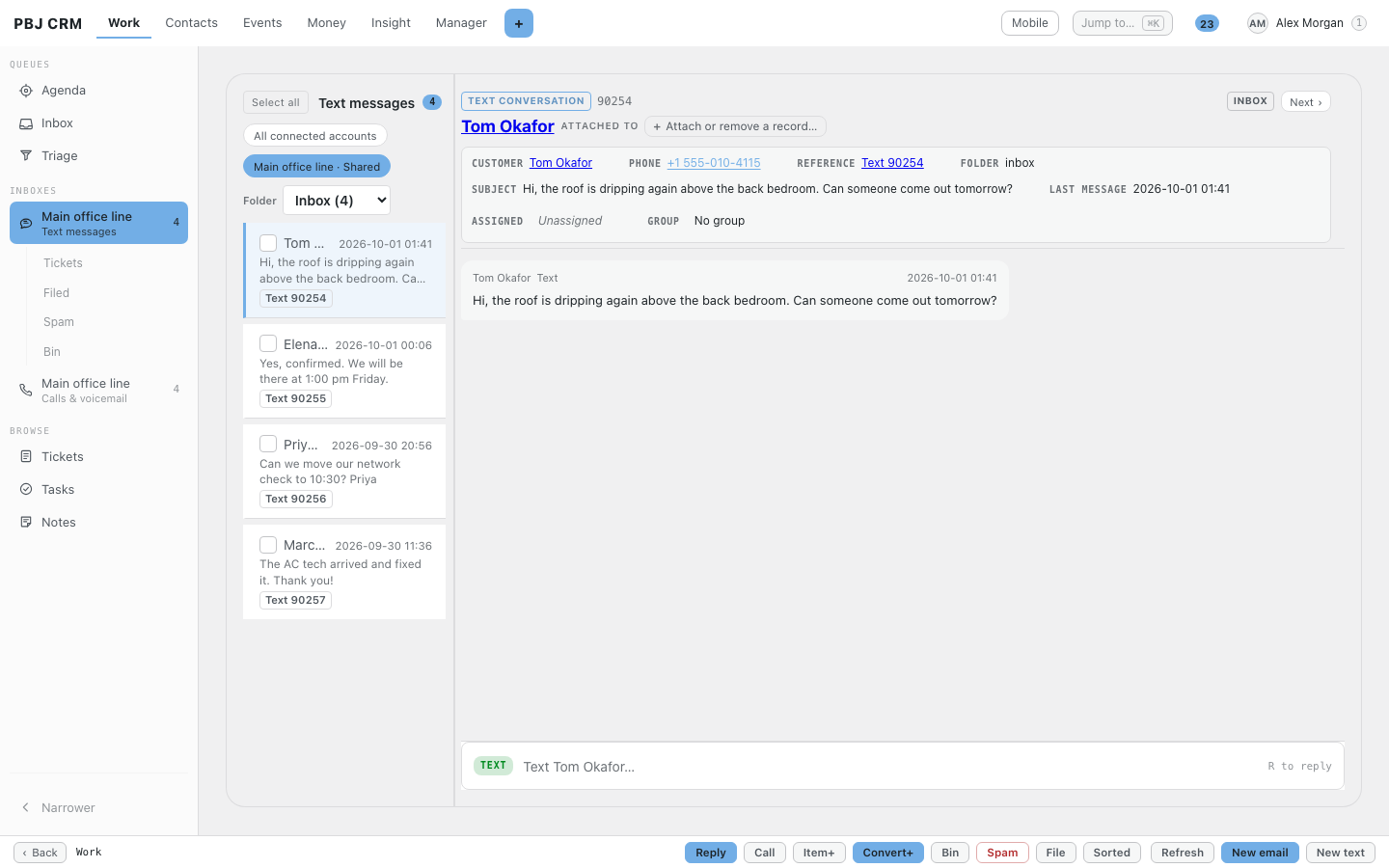
The Text messages inbox: your line, the list of conversations and the open thread.
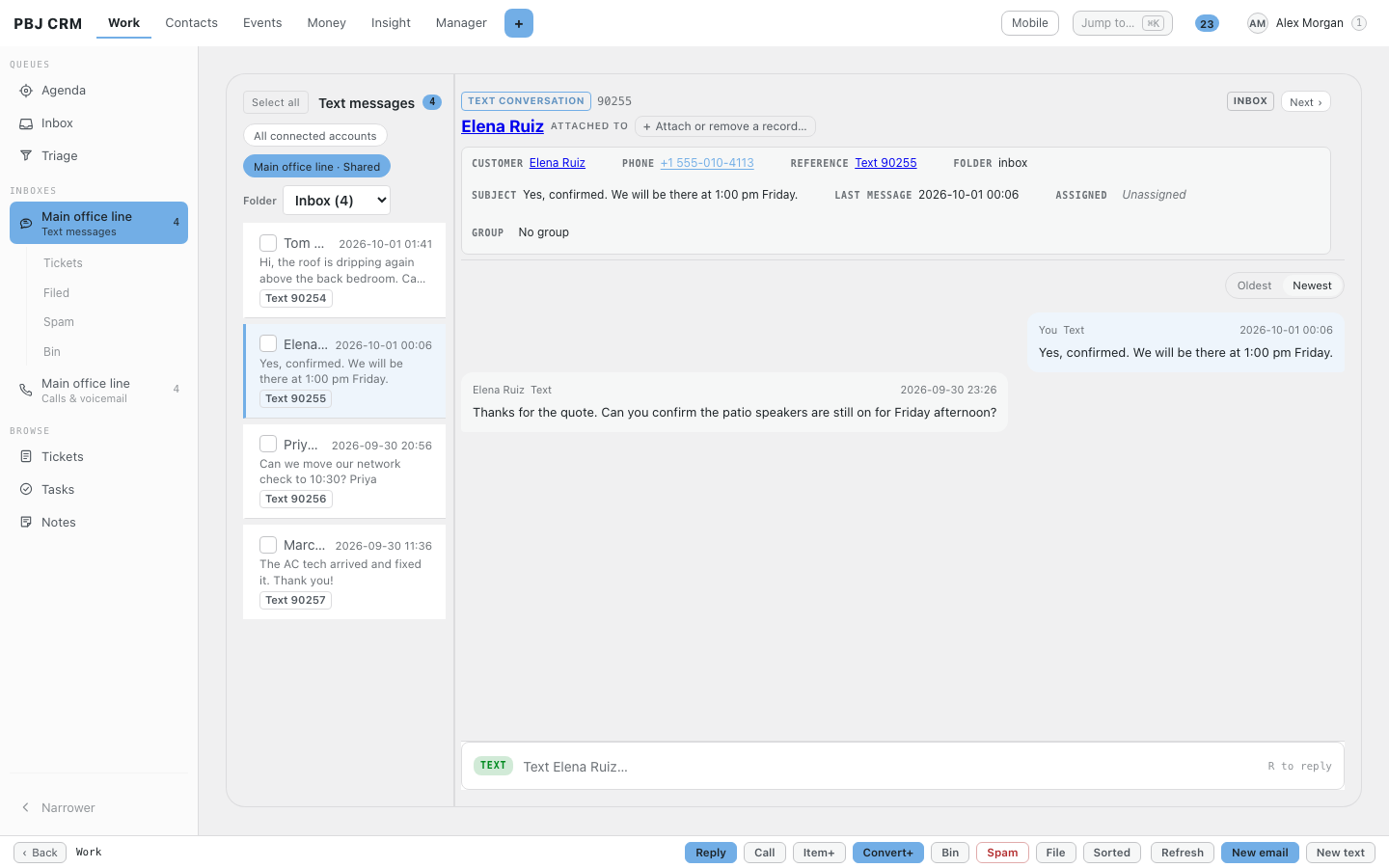
A two-way conversation, matched to the customer by phone number.
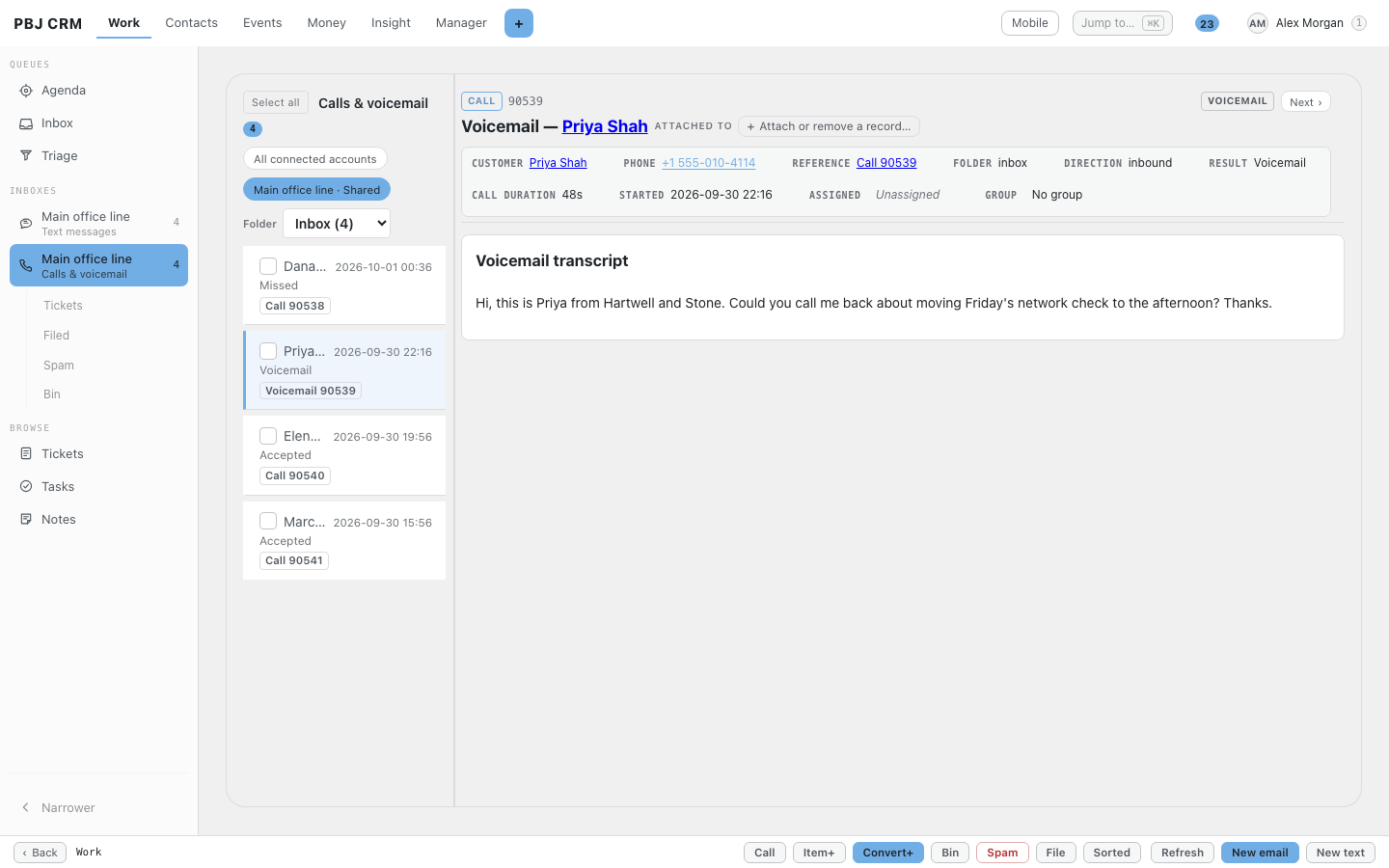
A voicemail with its transcript, attached to the caller.
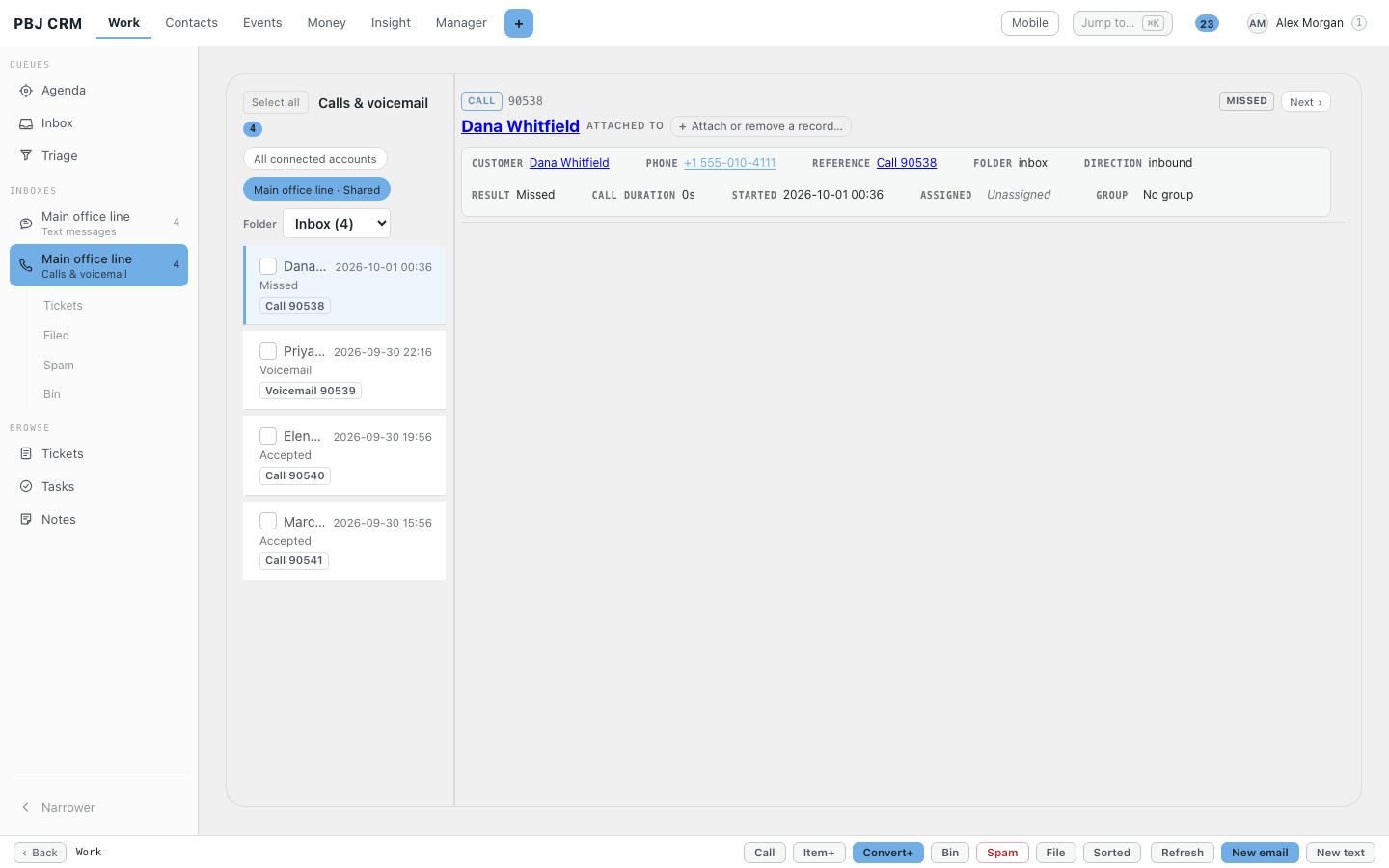
The call log: missed, answered and voicemail calls for the line.
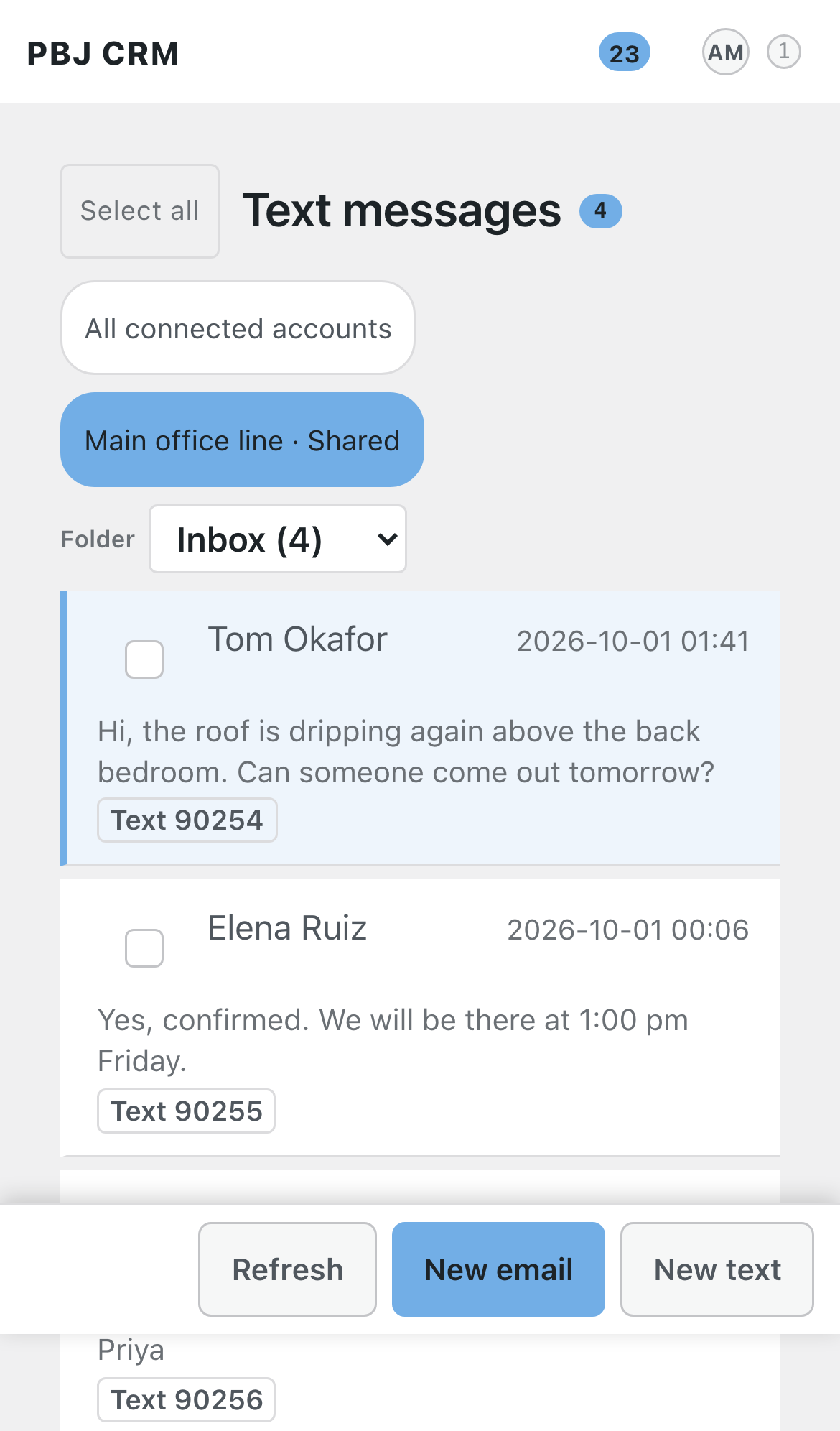
The text inbox on a phone.

Settings › Reach › RingCentral: the Client ID and the exact redirect address.
What it does
Texts inside the CRM
- Start a new text by typing a name or a full number.
- Pictures, audio, video and PDFs open in the CRM viewer.
- Search across every folder.
Calls, voicemail and click to call
- A call log showing who called, which way, the result and how long.
- Voicemail playback.
- Call recordings only if an owner switches them on.
- RingOut rings your phone first, then the customer. With no callback phone set, it falls back to your device dialler.
Work the queue together
- Inbox, Filed, Spam and Bin folders.
- Counts for what is still waiting.
- Tick several conversations and act on them at once.
- Filing never deletes anything.
Turn a conversation into work
- Convert+ turns a text or call into a ticket, invoice or booking, or adds it to an existing ticket or visit.
- While the ticket is open, new texts stay on it.
One shared line or everyone’s own
- An owner connects the company line, or staff each connect their own extension.
- Owners see everything, managers see their groups, and employees see what is assigned to them.
Always up to date and safe
- Arrives the moment RingCentral sends it, with a five-minute check as a safety net.
- A health screen with a Sync now button.
- You sign in with RingCentral directly. The CRM stores no RingCentral password.
- Opt-outs such as STOP are honoured.
- Disconnecting keeps your history.
Who it’s for
Five everyday examples, step by step. Your own business will look different, but the pattern is the same.
The office is closed and a customer texts a photo of a tripping breaker. In the morning the dispatcher opens Text messages, sees the conversation with the customer already suggested, and replies. A missed call from the roofer’s crew lead shows in Calls & voicemail, where one click calls them back. The dispatcher then uses Convert+ to turn the text into a ticket or a booked visit, and the whole exchange stays on the customer’s timeline.
A client leaves a voicemail that the server is down. It lands in the shared inbox with the audio and, where your plan provides it, RingCentral’s own transcript. The on-call engineer listens, presses Convert+ to open a ticket, and answers the client by text from the same screen. While the ticket is open further texts stay on it; the call and the texts sit on the client’s record for the next person who picks up.
An event space gives its manager and front-of-house team one shared business line. Inbound texts about bookings and deliveries arrive unassigned; the manager assigns each to a person or to the front-of-house group by name. Promotional texts from numbers nobody recognises are marked spam, and the number is blocked from local sending. Staff who also work from their own phone connect their personal extension, and their texts arrive assigned to them.
A client texts the office to move Friday’s appointment. Reception sees it in the inbox with the client suggested, replies, and files the conversation once it is dealt with. Staff see only what is assigned to them, managers see the groups they run, and the owner sees everything. Call recording is off unless an owner switches it on, which matters in professions with consent rules, and a client’s texts and calls are on their record when anyone needs the history.
Crew members each connect their own RingCentral extension, so a vendor’s text about load-in time reaches the person it is for. The producer links a venue contact’s number to both the person and the business, so every call about the show appears on both records. A photo of the loading dock sent by text opens in the CRM’s viewer, and a call back uses RingOut so it rings the producer’s phone first.
Set it up
- Install PBJ CRM (latest version). You need WordPress 6.5+, PHP 7.4+ and HTTPS.
- In PBJ CRM › Apps & Assistants › RingCentral, enter your license key and press Install and activate.
- In the RingCentral Developer Console, create a private REST API app. The CRM screen lists the exact settings, and gives you the redirect address to paste in.
- Paste the app’s Client ID into the CRM. Never paste a Client Secret.
- Choose Connect shared account or Connect my agent account, then open Text messages or Calls & voicemail.
Good to know
US business texting normally needs carrier registration or toll-free verification. Full transcripts and summaries need RingCentral’s AI Conversation Expert.
Works with
Buy PBJ RingCentral
$25 one-time per major version Includes a license key for 3 sites, instant download, and free updates within this major version. Requires PBJ CRM (latest version).
PBJ RingCentral — $25 Purchase
A future major version is a separate purchase if you want it. Your copy keeps working either way.